Cruise eSIM Problems and Troubleshooting
eSIM Not Working? Here's How to Fix It
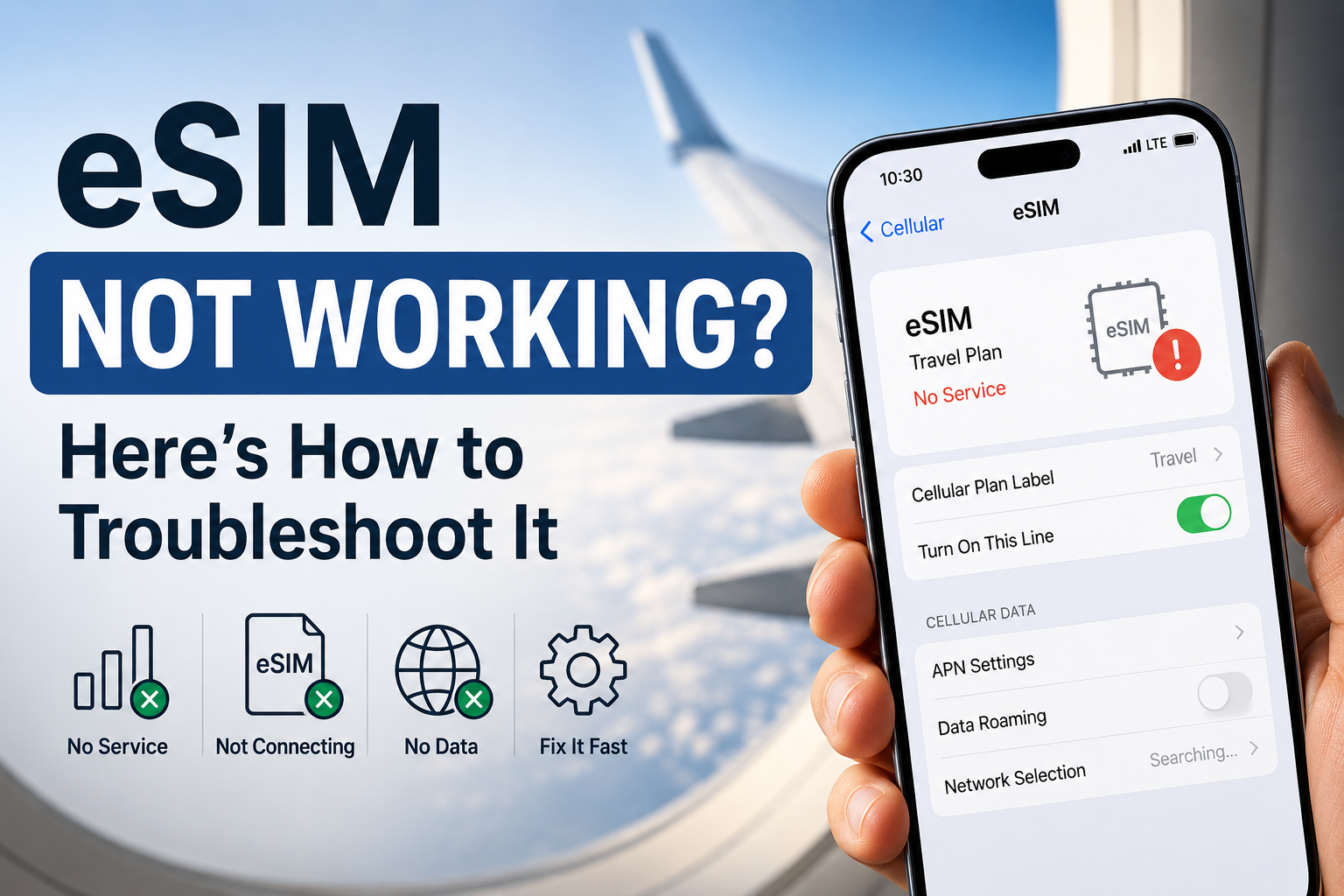
You did everything right. You installed the eSIM before your trip, double-checked the confirmation email, even saw the plan listed in your phone's settings. But the moment you land, there's no service. No data. The little signal bars just aren't there.
It's a frustrating way to start a trip, but it's also one of the most common eSIM issues travelers run into. And in most cases, it has nothing to do with the eSIM itself being broken. It usually comes down to a setting that needs to be switched on, or a step in the activation process that got missed.
Below, you'll find a step-by-step troubleshooting checklist to help get your eSIM working before contacting support.
eSIM Not Working? Here's How to Fix It
1. Check These Four Things First
Before diving into deeper troubleshooting, it's worth ruling out the simple stuff - most travel eSIM problems come down to one of these four things.
Is your eSIM enabled? Make sure the eSIM is fully installed and switched on in your phone's Cellular or Mobile Data settings. An eSIM can appear on your device but still be disabled.
Is the eSIM selected as your mobile data line? If you use two SIMs or have multiple eSIMs installed, your phone may still be using your home SIM for mobile data. Set your travel eSIM as the active data line.
Is Data Roaming turned on for the eSIM? Most travel eSIMs rely on roaming agreements with local networks, so Data Roaming usually needs to be enabled for that specific eSIM. This setting is separate for each SIM or eSIM on your phone.
Is Airplane Mode turned off? It's easy to forget after a flight. If Airplane Mode is still enabled, your phone won't connect to any mobile network until it's turned off.
If everything above looks correct and your eSIM still isn't working, continue with the troubleshooting steps below.
2. eSIM Step-by-Step Troubleshooting Checklist
My eSIM is not working. What to do? Work through these in order. Each one takes just a minute or two, and most issues get resolved within the first few steps.
Check that the eSIM is enabled in Settings. Go to your phone's cellular/mobile settings and confirm the eSIM is listed as installed and turned on, not just present in the list.
Set the eSIM as the active/default data line. If you have more than one SIM or eSIM on the phone, make sure the travel eSIM is selected for data use — not your home SIM or a previous travel eSIM.
Turn on Data Roaming for that specific eSIM. Remember, this setting is per-line. Even if the eSIM is active, it won't use data until roaming is switched on for that particular line.
Toggle Airplane Mode on and off. This forces your phone to disconnect and search for networks again, which often resolves connection issues without needing to change any settings.
Restart the phone. A simple restart clears out minor software glitches and forces a fresh network search — often fixing issues that toggling settings alone doesn't.
Check or update APN settings if provided by the eSIM provider. If your provider gave you specific APN details, make sure they're entered correctly. Some plans need this step manually; others configure it automatically on activation.
Confirm the data plan hasn't expired or run out. Log into the provider's app or website to check your plan's validity window and remaining data — especially if the plan may have started counting down before you expected.
Verify the phone is unlocked and eSIM-compatible. If none of the above resolves it, confirm with your home carrier that the phone is unlocked, and double-check your phone model supports eSIM in the country you're in (support can vary by region for the same phone model).
If you've worked through all eight steps and it's still not connecting, the issue is likely on the provider's end. At that point, it's worth contacting their support directly with your plan details on hand.
When the Problem Isn't the Phone, It's the Provider
If you've worked through the settings and the checklist and it's still not connecting, the issue might not be with your phone at all, it could be on the provider's side.
Check coverage maps before assuming it's a device issue. Most eSIM providers publish a coverage map showing exactly which countries and networks their plan supports. It's worth pulling this up and confirming your current location is actually included — sometimes a plan covers a region broadly but excludes a specific country, or only works with certain local networks that may have weaker signal where you are.
Confirm the plan is actually active. Some eSIMs install successfully but don't activate until a specific trigger - arriving in the destination country, connecting to a local network for the first time, or a manual activation step in the provider's app. If you installed the eSIM before your trip and haven't opened the app or triggered activation since arriving, that may be the missing step.
Contact provider support with the right details on hand. If everything checks out and it's still not working, reach out to the eSIM provider directly rather than your phone's manufacturer, they'll be able to see plan status on their end. Have your ICCID (a unique number tied to your eSIM, usually found in your phone's settings or the provider's app) and your plan name or order number ready, since this speeds up the process significantly.
Read more: