Cruise eSIM Problems and Troubleshooting
Why Is My Phone Not Working on a Cruise?
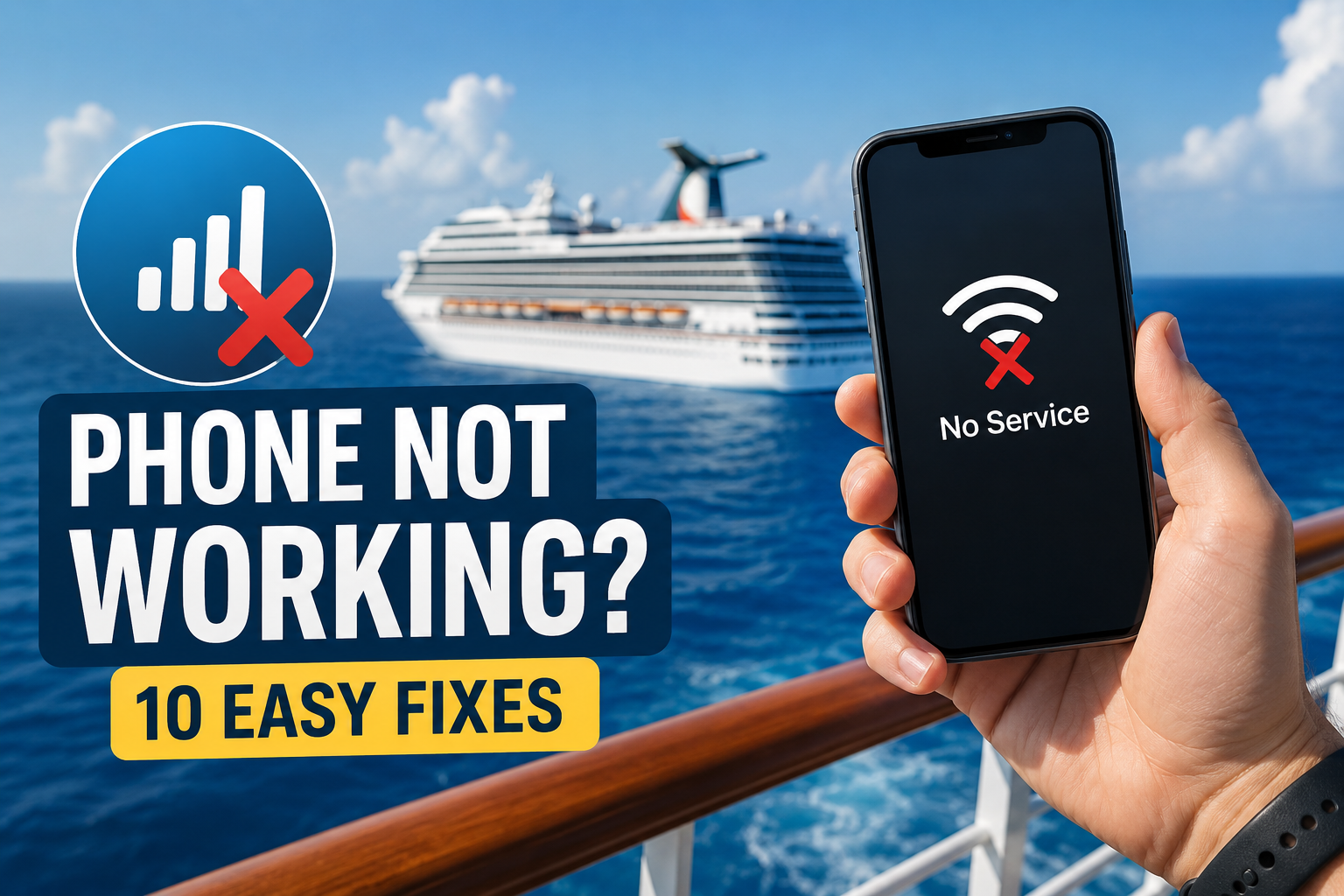
Many travelers are surprised when their phone suddenly loses signal or stops working shortly after their cruise ship leaves port. In most cases, there's nothing wrong with your phone, as it's simply no longer within range of land-based mobile towers. Instead, cruise ships rely on different communication systems, including maritime cellular networks and satellite internet, which work differently from the networks you're used to on land.
In this guide, we'll explain the most common reasons your phone may not be working on a cruise and show you simple troubleshooting steps to help you get connected again while avoiding unnecessary roaming charges.
Why Phones Stop Working on Cruise Ships
When a cruise ship leaves port, it quickly moves out of range of land-based mobile towers. Once this happens, your phone can no longer connect to the same cellular network you use on shore.
To stay connected at sea, your phone must either connect to a maritime cellular network, use the ship's Wi-Fi, or remain without service until the ship reaches the next port. Which option is available depends on your cruise ship, your mobile carrier, and your phone's settings.
In some cases, your phone will connect automatically. In others, it may show "No Service", "SOS Only", or simply fail to connect if roaming is disabled or your carrier doesn't support maritime networks. This is a normal part of being at sea and doesn't necessarily indicate a problem with your device.
1. You're Too Far From Land
The most common reason your phone stops working on a cruise is that you're simply too far from land.
Mobile networks are designed to provide coverage on land and only a limited distance offshore. Once the ship sails beyond that range, your phone can no longer connect to your usual carrier's network.
This is completely normal and happens on virtually every cruise. It doesn't mean there's anything wrong with your phone.
How to fix it
Depending on your situation, you have a few options:
Wait until the ship reaches the next port. Your phone will usually reconnect to a local mobile network once you're close enough to shore.
Use the ship's Wi-Fi. Most cruise lines offer onboard internet packages that allow you to browse the web, use messaging apps, and stay in touch while at sea.
Use a cruise eSIM. If your ship supports maritime eSIM connectivity, you may be able to access mobile data while at sea without relying solely on the ship's Wi-Fi.
2. Airplane Mode Is Still Enabled
Many travelers switch on Airplane Mode before boarding to avoid unexpected roaming charges. After settling into the cruise, it's easy to forget that it's still enabled, which can make it seem like the phone isn't working.
When Airplane Mode is turned on, it disables your phone's mobile network. It also turns off Wi-Fi and Bluetooth by default, although you can usually turn Wi-Fi and Bluetooth back on manually while keeping Airplane Mode enabled.
How to fix it
If you want to use mobile service, turn Airplane Mode off and allow your phone to reconnect to an available network.
If you're planning to use the ship's internet, you can leave Airplane Mode on to prevent accidental roaming charges and simply turn Wi-Fi back on manually. This is one of the safest and most common ways to stay connected while at sea.
3. Mobile Data Roaming Is Turned Off
Many travelers turn off mobile data roaming before a trip to avoid expensive international or cruise roaming charges. While this is a smart way to prevent unexpected fees, it also means your phone won't connect to foreign mobile networks in port or maritime cellular networks while you're at sea.
If roaming is disabled, your phone may display "No Service" or connect only when you're back on your home network.
How to fix it
If you want to use your regular mobile carrier while traveling, you'll need to enable data roaming in your phone's settings. Before doing so, check your carrier's cruise roaming rates, as maritime data can be very expensive.
If you want more predictable costs, consider using a cruise eSIM instead. A supported cruise eSIM lets you purchase a data plan in advance, so you know what you'll pay instead of relying on your carrier's roaming rates.
A word of caution about data roaming
If you plan to use your regular mobile carrier, you may also need to enable Data Roaming. However, be careful—using your carrier's roaming service on a cruise can be extremely expensive. Maritime roaming charges are often much higher than standard international roaming and can result in unexpectedly large bills.
If you want internet access while at sea, it's usually safer to either:
Purchase the ship's Wi-Fi package, or
Use a supported cruise eSIM, which offers more predictable pricing and helps you avoid unexpected roaming charges.
Before enabling data roaming, always check your carrier's cruise roaming rates so you know exactly what you'll be paying.
Read more: How to Stay Connected on Your Cruise with a Cruise eSIM
4. Your Carrier Doesn't Support Maritime Networks
Not every mobile carrier provides coverage while you're at sea. Even if your cruise ship has a maritime cellular network available, your carrier may not have a roaming agreement with that network.
When this happens, your phone may display messages such as "No Service", "SOS Only", or "Emergency Calls Only", even though other passengers are able to connect using a different carrier or service.
This doesn't necessarily mean there's a problem with your phone. It simply means your mobile provider doesn't support the maritime network used by the ship.
How to fix it
Before your cruise, check whether your mobile carrier offers cruise or maritime roaming and whether your specific itinerary is covered.
If your carrier doesn't provide service at sea, you can:
Use the ship's Wi-Fi package while onboard.
Use a supported cruise eSIM if your ship and device are compatible.
Wait until the ship reaches port, where your phone can connect to a local mobile network if roaming is available.
5. Your Phone Isn't Compatible With the Available Network
Although most modern smartphones work well on cruise ships, older devices may not support the mobile technologies or frequency bands used by the ship's maritime network. Depending on the cruise line and onboard equipment, the ship may provide service over 3G, 4G LTE, 5G, or specific network frequencies that aren't supported by every phone.
If your device isn't compatible, it may fail to connect even when a maritime network is available. You might see "No Service", or your phone may repeatedly search for a network without successfully connecting.
How to fix it
First, make sure your phone's software is up to date, as software updates can sometimes improve network compatibility.
If you're using an older device, check whether it supports the network bands used by your carrier and the cruise's maritime provider. If your phone isn't compatible, your best alternatives are:
Use the ship's Wi-Fi while at sea.
Use your phone once the ship reaches port and connects to a local mobile network.
If you're planning to cruise regularly, consider upgrading to a newer smartphone that supports a wider range of global network technologies.
Read more: Which Phones Support eSIM for Cruise
6. You're Connected to the Wrong Network
Sometimes your phone tries to stay connected to a weak land-based mobile network even after the ship has sailed away from shore. In other cases, it may continue searching for a maritime network when you've already arrived in port and a stronger local carrier is available.
This can result in poor signal, slow data speeds, or no connection at all.
How to fix it
You can manually choose a different network if your phone isn't connecting correctly.
Open Settings and go to Mobile Network or Cellular settings.
Find Network Selection.
Turn Automatic network selection off.
Wait for the available networks to appear.
Select the strongest supported network.
If the selected network doesn't work, switch back to Automatic and let your phone try again. In many cases, simply restarting your phone after changing networks can also help establish a connection.
7. Mobile Data Is Disabled
Sometimes the solution is surprisingly simple—mobile data has been turned off. This can happen accidentally or because it was disabled before your trip to save data or avoid roaming charges.
If mobile data is off, your phone won't be able to use cellular internet, even if it has a signal.
If you're planning to use your mobile carrier or a cruise eSIM, you'll also need to ensure that Data Roaming is enabled if required by your plan. Otherwise, your phone may still be unable to access mobile data while you're abroad or at sea.
8. You Haven't Purchased Internet Access
Many travelers assume they'll be able to use the ship's Wi-Fi as soon as they board. However, on most cruise ships, internet access isn't included by default and usually requires purchasing an onboard internet package.
It's also important to understand that cellular service and cruise Wi-Fi are two different ways of getting online.
Cellular connection
A cellular connection uses a maritime mobile network. If your carrier or cruise eSIM supports it, your phone can connect automatically while you're at sea without using the ship's Wi-Fi.
Cruise Wi-Fi
Cruise Wi-Fi uses the ship's satellite internet connection. Before you can access the internet, you'll usually need to:
Purchase an internet package.
Connect to the ship's Wi-Fi network.
Log in through a web portal or the cruise line's mobile app.
Until you've completed these steps, your phone may show that it's connected to Wi-Fi but still won't have internet access.
9. The Ship's Satellite Connection Is Congested
If your phone is connected but the internet is slow, the problem may be the ship's satellite connection rather than your device. Cruise ships share satellite internet among all passengers, so speeds often slow down during busy periods.
You may notice:
Slow-loading websites
Apps that won't connect
Delayed messages
Slow photo or video uploads
Internet performance can also be affected by weather conditions and the ship's location.
How to fix it
Try using the internet during off-peak hours, such as early in the morning or late in the evening, when fewer passengers are online. Keep in mind that slower speeds are normal on cruise ships, even when everything is working correctly.
10. Your Phone Needs a Simple Restart
Sometimes your phone simply gets stuck while switching between land-based and maritime networks. This can result in "No Service", poor signal, or mobile data not working.
How to fix it
Restart your phone and give it a minute to reconnect to an available network. If that doesn't help, try turning Airplane Mode on for 30 seconds and then off again, or switch Network Selection back to Automatic if you've changed it manually.
A simple restart often fixes temporary network issues.